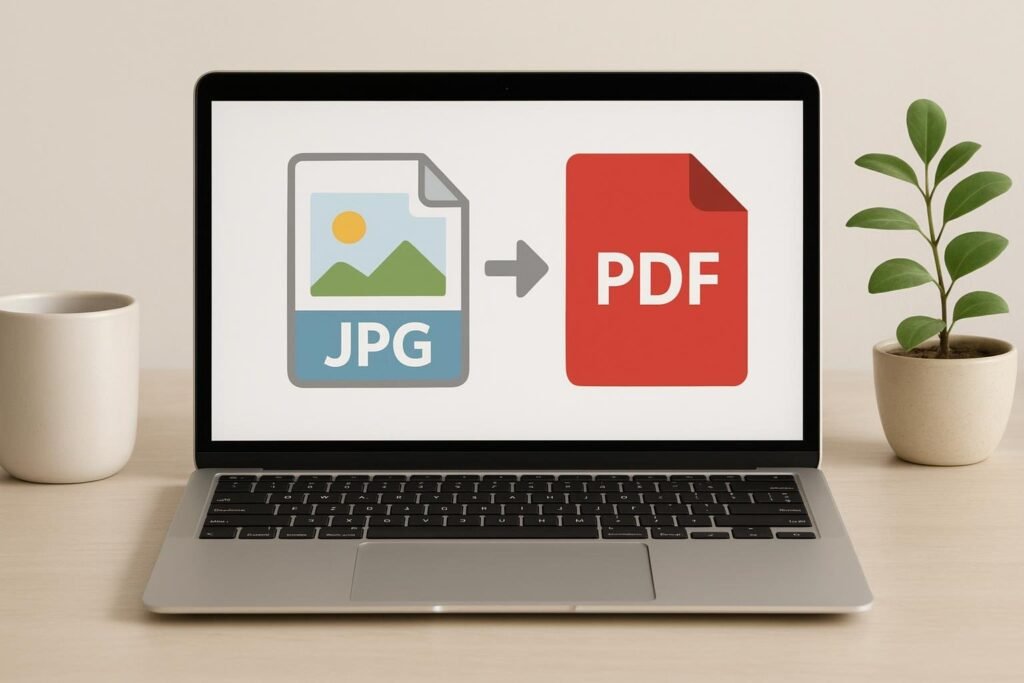

Need a PDF page as a JPG without paying a subscription? You can convert PDF to JPG for free using tools already on your computer or a reliable web utility. The catch is that free utilities often hide traps: blurry output at low resolution, batch limits that appear at the final step, and uploads of sensitive files to unknown servers.
This guide shows you how to get sharp, watermark-free images and keep private documents on your own device. You’ll choose the right method, set the resolution so text stays readable, and avoid the limits that catch most people.
Choose Your Method: Web Apps vs. Offline Native Tools
Before you convert anything, decide where your PDF is going to live. That one choice matters more than which button you click. If you want to convert a PDF to JPG for free in a hurry, a web app is usually the quickest path. If the file contains anything private, you’ll want an offline option instead.
Take a freelance designer who needs to send a public brochure to a client. A PDF to JPG document converter on the web works fine here. The file is already public, and she only needs the pages as images within a few minutes.
Now picture a paralegal with a signed contract to turn into images for a case folder. Uploading that file to a stranger’s server is a different story. Keep it on your own machine.
Here is a quick way to choose:
| Your situation | Best option |
|---|---|
| Public file, small size, one-time task | Web apps such as Smallpdf, iLovePDF or FreeConvert |
| Bank statements, legal or medical papers | macOS Preview or an offline desktop tool |
| Dozens of pages, repeated work | Offline desktop tool with batch export |
Web apps are fast, but they do upload your file. FreeConvert says it deletes uploaded files from its servers after 8 hours, which helps. Still, a few hours of storage is not the same as none, so read the privacy policy before you upload anything sensitive.
On a Mac, Preview can export a PDF to JPEG directly, with no install and no upload. On Windows, PDFgear runs fully offline for batch conversion, with no ads, subscriptions, or file caps. Both are worth a try before you reach for a website.
Fix Blurry Text by Changing the DPI Settings
If your converted JPG looks fuzzy, the problem is almost always the resolution. Most free web converters render pages at 72 or 150 DPI by default, and that is often too low for small text. Changing one setting before you convert usually fixes it.
Here is a quick way to think about the options:
| Setting | DPI | Best for |
|---|---|---|
| Standard | 72 DPI | Email previews, quick sharing on screen |
| Medium | 150 DPI | Web pages, documents you only read on screen |
| Ultra HD | 300 DPI | Printing, zooming in close, small fonts, and tables |
Say you’re a student turning a dense lecture handout into images for a slide deck. At 72 DPI, the footnotes turn into grey smudges. At 300 DPI, they stay sharp when you project or zoom in.
Follow these steps when the text needs to stay crisp:
- Open your converter and add the PDF.
- Find the resolution or quality option, and pick the 300 DPI setting.
- Convert a single page first and zoom in on the smallest text to check it.
- If it looks clean, convert the rest of the pages.
Higher resolution comes at a cost. A 300 DPI file is much larger than a 150 DPI file of the same page, so a long document can fill your storage quickly. If you only need the pages for a screen, 150 DPI is usually enough. Save the 300 DPI setting for printing or close inspection.
My test: converting a 3-page PDF with different layouts
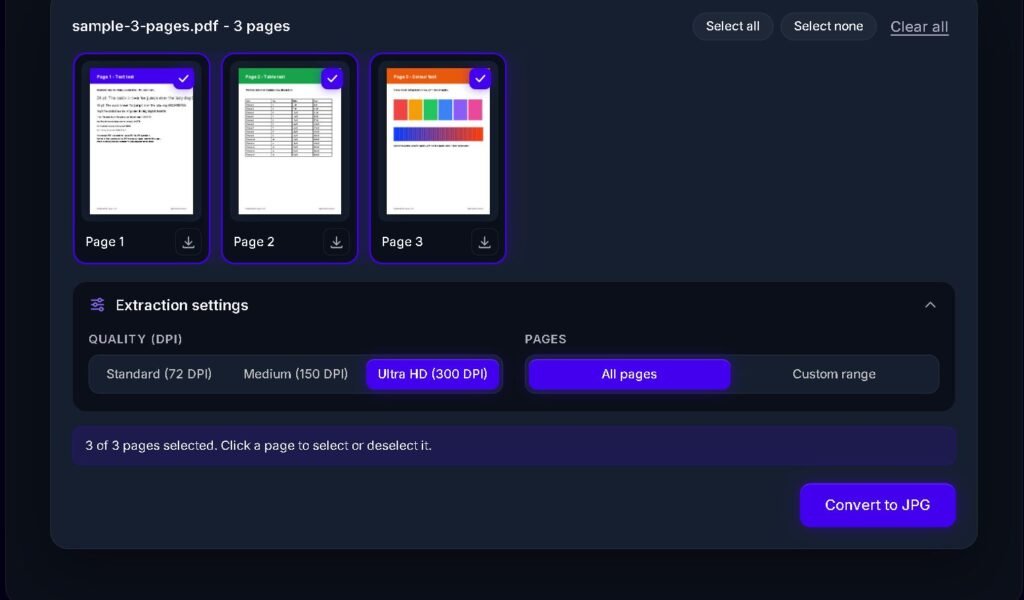
I wanted to see how a free converter handles messy files, so I tested one. It is a 3-page PDF on digitaltoolshq.com with different content on each page: plain text in several font sizes, a table with rows and columns, and color blocks with a gradient.
Here’s exactly what I did, step by step:
- I opened the PDF to JPG tool on digitaltoolshq.com and added the PDF. All 3 pages appeared as thumbnails, and every page was selected.
- Under Extraction settings, I picked Ultra HD (300 DPI) and kept all pages selected.
- I clicked Convert to JPG. On my HP laptop, it finished in about 2 seconds.
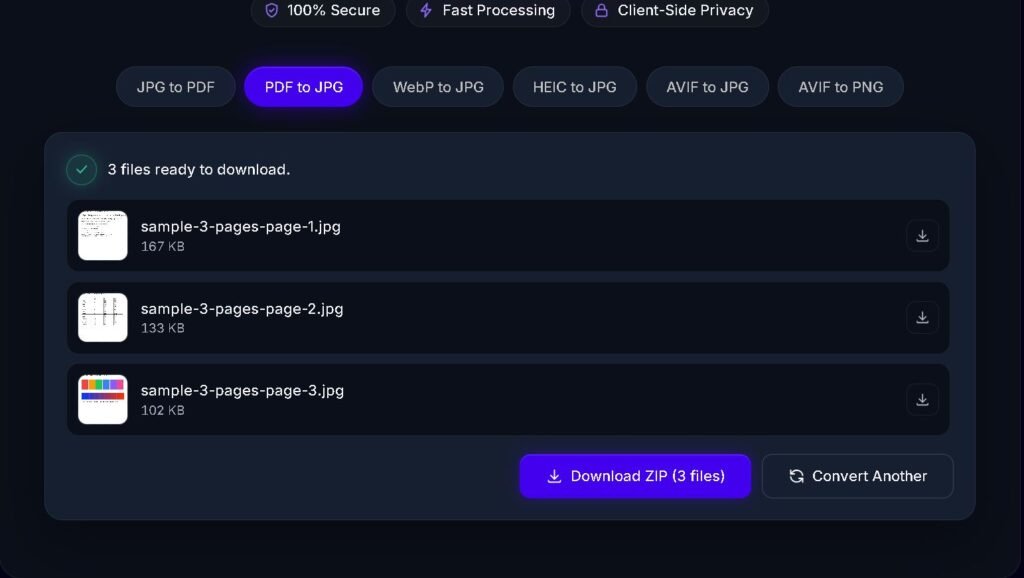
The output was three separate image files, one per page, bundled into a ZIP folder. I could also have downloaded each page on its own.
Your timing will vary. A bigger PDF or an older machine will take longer, so don’t panic if the progress bar sits for a moment.
If your PDF holds a bank statement, a contract, or a client brief, you probably don’t want it sitting on someone else’s server. So how do you change a PDF to a JPG file without that risk? You can convert it on your own machine instead. Here’s how to pick the right route.
How to Convert Without Uploading Files
If your PDF holds a bank statement, a contract, or a client brief, you probably don’t want it sitting on someone else’s server. You can convert it on your own machine instead. Here’s how to pick the right route.
On a Mac, Preview already does the job. Open the PDF, then go to File, Export, and choose JPEG from the Format menu. Preview exports the page you’re viewing, so check whether your macOS version exports every page before you count on it for a long file.
On Windows, install free desktop software such as PDFgear. It runs offline, so your file never leaves your PC. You also avoid the file size caps and waiting queues that come with most web tools.
Browser tools can also keep your data local. Some use WebAssembly, PDF.js and the HTML5 Canvas API to render pages right inside your browser. The file stays on your hard drive, so nothing is uploaded at all.
A quick rule helps you decide:
- Confidential documents: use Preview or an offline desktop app.
- Public, non-sensitive files: a web tool is fine, as long as you check its file limits and deletion policy.
If you’re switching from PDF to JPG for the first time, start with the offline route. It takes a few minutes to set up and saves you from worrying about where your pages went.
Handling Full-Page Rendering Versus Image Extraction
Before you convert anything, decide what you actually need. Some tools turn each whole page into a picture. Others pull out only the photos sitting inside the file. Picking the wrong one wastes time.
- Full-page rendering takes a snapshot of each entire page. Text, tables, colors, and images all end up in one JPG per page. This is the right choice when you want a page to look exactly as it does on screen.
- Image extraction pulls out the individual pictures embedded in the document layout. You get the photos on their own, without the surrounding text. This suits you when you need a logo, a product shot, or a diagram from a report.
Say you’re a freelancer who received a 20-page client brief with a few photos you want to reuse. Full-page rendering gives you 20 pages to sort through. Extraction gives you just the photos.
Most free online tools handle full-page rendering without trouble. Image extraction is where paywalls tend to appear. Smallpdf, for example, lets free accounts render full pages but keeps individual embedded image extraction behind its Pro trial. Check the limits on the tool’s page before you upload a file you need in a hurry.
If you only need the pictures and the tool locks extraction, try rendering the pages at 300 DPI first. You can then crop the images you need in a free editor.
Test One Page Before You Convert the Whole File
Start by deciding how private the file is. Bank statements and signed contracts belong on an offline tool, while a public brochure or class handout can go through a web converter.
Next, set the resolution and convert just page one. Open the JPG at full size and check that the text looks sharp. If it does, run the full batch with All pages selected.
Frequently asked questions
How do I convert a multi-page PDF into separate JPGs without downloading them one by one?
Add the PDF to the converter, keep All pages selected, and click Convert. Once the conversion finishes, choose Download ZIP to get every page in one file. Each page still arrives as its own JPG, such as page-1.jpg and page-2.jpg, so you only download once. If you need just a few pages, use the Custom range option first, then download the ZIP.
Is it safe to upload sensitive bank or legal PDFs to free online converters?
Not always. When you upload a file, it travels to the company’s server, and you depend on their privacy policy to know how long it stays there. Read that policy before you upload anything confidential. For bank statements, contracts or legal papers, an offline desktop tool is the safer choice because the file never leaves your computer.
Why does Adobe Acrobat Reader require a paid subscription to save pages as images directly?
Adobe Reader is designed mainly for viewing and printing PDFs, and most of its editing and export tools belong to the paid Acrobat plans. Adobe changes its plans and features from time to time, so check the current options on Adobe’s website before you buy. If you only need occasional conversions, a free offline tool or a free web converter can do the job.