
Learning how to convert JPG to PDF on a Mac takes about ten seconds, and you don’t need to install any extra software. macOS includes two built-in methods, Finder Quick Actions and Preview, that handle single images and multi-page sets with ease. Processing files this way keeps your documents secure on your own machine, which matters when you handle private contracts, IDs, or sensitive client work.
Skip the free online converters that ask you to upload private scans. Your files never leave your Mac when you use these tools. Each method behaves a little differently, though, especially with margins and file size.
Below, you’ll see how Quick Actions and Preview compare for anyone searching how to turn a JPG into a PDF on a Mac, plus fixes for common problems like huge PDFs and pages in the wrong order.
How to Convert JPG to PDF on Mac Using Finder Quick Actions
If you only need a quick PDF, Finder is the fastest route. You don’t need to open an app or pay for anything. Just select your images and let macOS do the work.
Finder’s Quick Actions has been part of macOS since Mojave (10.14), so any reasonably recent Mac can do this. Think of a student who has photographed five pages of lecture notes on their phone and needs them in one file for an email. That’s exactly the job this method handles well.
Combining multiple images
Here’s how to combine JPG into one PDF Mac from several JPEGs:
- Open the folder in Finder that holds your images.
- Select the files by clicking the first one, then holding Command while you click the rest.
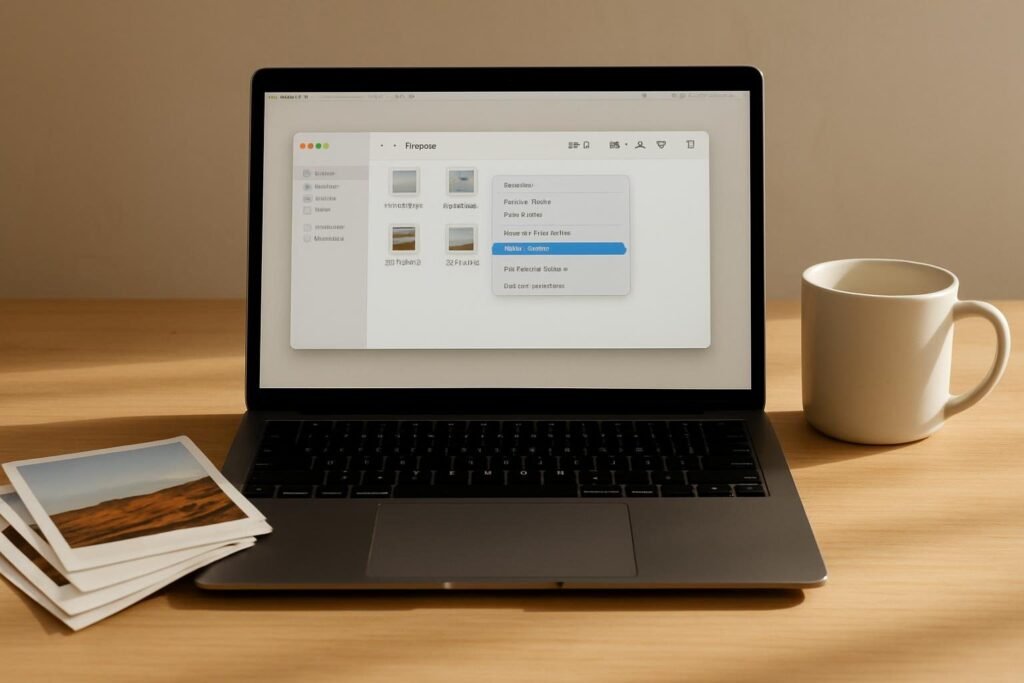
- Right-click the selection and choose Quick Actions > Create PDF.
- Give the new file a name in the box that appears, then save it.
Quick Actions also accepts PNG and HEIF files, so you can mix formats in one selection. That’s handy if your phone saves photos as heic.
Controlling page order
This is where most people get caught out. Finder builds the PDF from the folder’s current sort order, not the order you clicked. If your files are named scan.jpg, page2.jpg, and page10.jpg, the result often reads 10, 2, scan.
The fix takes about a minute. Rename each file with a two-digit prefix before you select anything:
- 01.jpg, 02.jpg, 03.jpg, and so on
- Use two digits even if you have fewer than ten pages, so 10 doesn’t sort before 2
Once the names are in order, select them and run Create PDF. Open the result in Preview to check the sequence before you send it anywhere.
Using Preview for Single and Multi-Page Documents
If you want to know how to convert from JPG to PDF on Mac without installing anything, Preview is your answer. It comes pre-installed on every Mac, costs nothing, and handles both single images and multi-page files.
For example, if you scan three signed forms with your phone to email a landlord: Open the first JPG in Preview, then drag the other two files into the sidebar. Each image becomes a page.
Export as PDF versus Print to PDF
Both options produce a PDF, but they treat your image differently. Choosing the wrong one is the most common reason people end up with odd margins or squashed photos.
File > Print > PDF > Save as PDF: often no, often yes. Documents you plan to print on letter or A4 paper
| Method | Keeps original proportions | Adds white borders | Best for |
|---|---|---|---|
| File > Export as PDF | Yes | No | Photos, scans, and anything you want unchanged |
Print to PDF fits your image onto a standard paper size. That can add white space around it or stretch it. Use Export as PDF unless you have a specific reason to print.
To reorder pages, click the thumbnail sidebar (View > Thumbnails if it’s hidden). Drag each thumbnail up or down until the sequence is right. Then choose File > Export as PDF.
- Open the first JPG in Preview.
- Drag the remaining JPGs into the sidebar.
- Drag thumbnails into the order you want.
- Go to File > Export as PDF and save.
How to Fix Giant PDF File Sizes on Mac
If you photograph a stack of receipts with your phone and convert them into a single PDF: The result is often far bigger than the photos were. That happens because macOS doesn’t compress images during a standard convert JPG to PDF on a Mac job. Each JPG keeps its full pixel data, so the PDF carries every pixel from every page.
Applying Quartz filters
Preview has a built-in fix. Open your PDF, then choose File > Export. Open the Quartz Filter dropdown and pick Reduce File Size. Save the file, then compare the two sizes in Finder.
Keep the original file. Filters permanently lower image quality, and you can’t undo that once you’ve saved over it.
Adjusting export quality
If the filter squashes the images too much, try a middle ground:
- Export a copy with the Reduce File Size filter and check the text and photos.
- If the text looks fuzzy, re-export from the original JPGs and skip the filter.
- For scanned documents, shrink the photos before converting, not after.
Paid tools such as Adobe Acrobat Pro can handle this too, but they charge a recurring subscription, starting around $19.99 a month. Check current pricing before you buy. For a one-off file, the free Preview route does the same job at no cost.
Converting on a MacBook Air or Pro
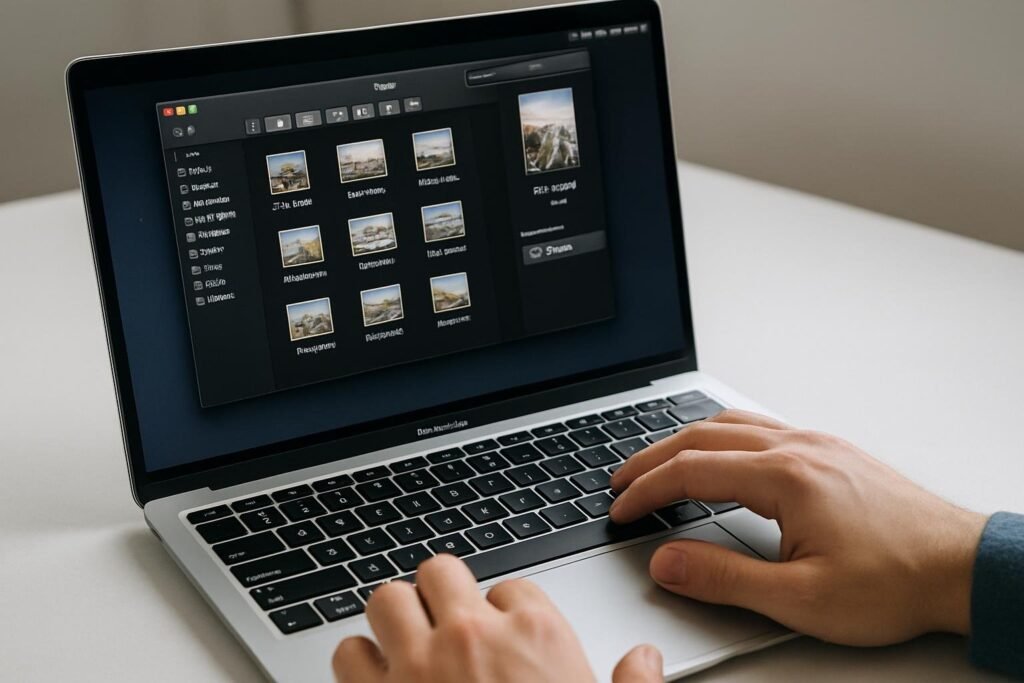
On a compact laptop screen, the fastest route is usually the trackpad and a couple of keyboard shortcuts. Here’s how to convert JPG to PDF on a MacBook Air without squinting at tiny menus.
Using trackpad shortcuts
Say you’re a freelancer on a MacBook Air with six sketches to send to a client before lunch. Open the folder in Finder and work through these steps:
- Click the first image, then hold Command and click the rest.
- Use a two-finger click on the trackpad to open the contextual menu.
- Choose Quick Actions, then Create PDF.
Quick Actions accepts JPEG, PNG, and HEIF files, so you don’t need to convert iPhone photos first. The new PDF lands in the same folder.
Quick Finder pane toggles
A small screen gets crowded fast when you want file details and quick actions to show at once. Press Command+Shift+P in Finder to show or hide the preview pane.
- Keep the pane open while you select files, so you can check the order before you create the PDF.
- Hide it again when you need room for a long file list.
If the page order looks wrong afterwards, delete the PDF and reselect the images in the order you want.
Batch Converting Images with Shortcuts and Automator
If you turn the same kind of file into a PDF every week, clicking through menus gets old fast. Say you’re a freelancer who collects twenty client receipts as JPGs each month. A small automated workflow saves you that repeated work.
Setting up automated workflows
Both Automator and the Shortcuts app can build a batch image-to-PDF workflow. The key piece is the new PDF from the Images action. Feed it your images, and it returns one combined PDF.
- Open Shortcuts (or Automator) and start a new workflow.
- Add the New PDF from Images action.
- Point the input at your image files, then run it once to test.
Check the page order on your first run. The workflow uses the order it receives the files, so sort them by name in Finder before you start.
Creating a dedicated desktop action
Once the workflow works, save it so you can run it in one click. Your receipts folder becomes a one-step job. Keep the output folder fixed so you never hunt for the finished file.
If you outgrow native tools, freeware such as PDFgear handles batch conversion offline. It also runs local OCR, and you don’t need to create an account. Your files stay on your Mac, which matters for tax forms and IDs.
Here’s how the three native methods compare:
| Method | Best for | Layout behaviour | Effort |
|---|---|---|---|
| Finder Quick Actions | Fast single PDF from selected images | Order follows your selection | Right-click, done |
| Preview Export as PDF | Checking or fine-tuning one file | Keeps original image proportions | A few clicks |
| Print > Save as PDF | Printable pages on a standard paper size | Fits images to paper, can add margins | Several clicks |
| Shortcuts or Automator | Repeating the same job often | Order follows the file input | One-time setup |
Try Quick Actions on Your Own Photos Right Now
Open Finder, pick two or three JPG files, and right-click them. Choose Quick Actions, then Create PDF. You should have a new PDF in the same folder within about ten seconds.
Open that PDF in Preview and scroll through it. Check that the photos look sharp and sit in the order you picked. If they do, you already know the method that covers most jobs. If the option is missing, the FAQ below walks you through the fix.
Frequently asked questions
Why is the Create PDF option missing from my right-click menu in Finder?
The most common reason is that the Finder extension is turned off. Go to System Settings, open General, then Login Items & Extensions, and make sure Finder has its extensions enabled under the Extensions section. Also check that you right-clicked image files, not a folder, and that Quick Actions is not hidden on your Mac. Restart Finder from the Apple menu with Option held down if it still does not appear.
How to Convert HEIC Photos to PDF on Mac
Select the HEIC files in Finder, right-click, and choose Quick Actions, then Create PDF. macOS reads HEIC natively, so this usually works without converting the photos first. If the option does not appear for HEIC files, open one photo in Preview, choose File, then Export as PDF. Either way, your original HEIC files stay untouched in their folder.
Does converting images to PDF reduce the print quality of my photos?
No, wrapping a JPG in a PDF does not lower its resolution by itself. The image inside the PDF keeps its original pixel size. Quality drops only when you use a compression option, such as Reduce File Size in Preview’s Quartz filters, or when you scale the image down. If you plan to print, skip any compression step and check the output at full size before you send it.
Where did the Save as PDF option go in the Print dialog on newer macOS versions?
Apple has moved and redesigned parts of the Print dialog over recent macOS releases, so the button is not always in the same spot. Look for a PDF dropdown in the lower-left corner of the print window, or a Show Details option that reveals it. If you cannot find it, open the file in Preview and choose File, then Export as PDF. That route works on every version I have used since 2021.