
Most PDF tools slap a giant watermark across your coursework or lock the download button behind an expensive subscription right before your midnight deadline. Finding the best free pdf editor for students comes down to a simple split: altering existing text versus scribbling notes with a stylus.
If you need to rewrite actual paragraphs on a syllabus, offline tools like LibreOffice Draw handle the edits without paywalls. For daily lecture markups, signing forms, or merging seminar readings, the built-in software on your laptop or tablet already does the job without uploading your private files to random cloud servers.
The Trap of Free Online PDF Editors
Search for a PDF editor and the first results are almost always web tools. They look free. Many aren’t, at least not when it counts.
Why downloads get blocked
Picture a student fixing a scholarship form at 11 p.m. They spend 20 minutes adding text, rearranging pages and tidying the layout. Then they click Download and hit a checkout screen.
That’s the usual bait-and-switch. The editing is free, but saving your work isn’t.
- Sejda: the free tier allows 3 tasks per hour and caps documents at 200 pages or 50 MB.
- Smallpdf: free use is limited to a strict number of tasks per day, then it pushes you toward a Pro plan.
Fine for a one-off job. A nightmare when you’re juggling several readings before a deadline.
The privacy risk of cloud conversions
Web editors work by uploading your file to someone else’s server. That’s a big deal for what students actually handle: financial aid forms, ID scans, unpublished research drafts.
You rarely know how long a file is kept or who can access it. Check the tool’s privacy policy, and your school’s rules, before uploading anything sensitive.
My rule: if the file has your name, ID number or unpublished work in it, edit it offline. The next sections cover tools that do exactly that.
Best Free PDF Editor for Changing Existing Text
Most basic PDF viewers only let you slap a clumsy white box over words to type over them. When you need to fix a typo on a lab report or update a deadline on a syllabus, you need software that can reflow original paragraphs without breaking the layout.
PDFgear for all-in-one desktop editing
If you want the closest thing to Adobe Acrobat Pro without paying a dime, start here. PDFgear stands out as the best free pdf editor for students who need direct text manipulation on a tight schedule.
- Real text editing: Click on any native paragraph, backspace an incorrect sentence, and type your revision using matching fonts.
- No hidden catches: You do not need an account, there are no export watermarks, and it will not ask for a credit card after page three.
- Cross-platform support: It runs locally on Windows, macOS, iOS, and Android, handling PDF-to-Word conversions and annotations offline.
LibreOffice Draw for vector text replacement
LibreOffice is famous as a free Microsoft Office rival, but its included “Draw” program is a secret weapon for modifying static files on Linux, Windows, and Mac.
- Vector-level control: Draw breaks open the PDF into editable vector elements, letting you delete logos, move text boxes, and change individual lines.
- Strictly offline: Your files never touch a remote server, making it safe for sensitive scholarship documents or unpublished research drafts.
Keep in mind that Draw can occasionally misread complex multi-column journals. For standard course handouts and assignment cover sheets, though, it gets the job done cleanly.
Built-In OS Tools You Already Have
Before you install anything, check what’s already on your laptop. For most weekly coursework, you don’t need a separate app.
Microsoft Edge PDF markup
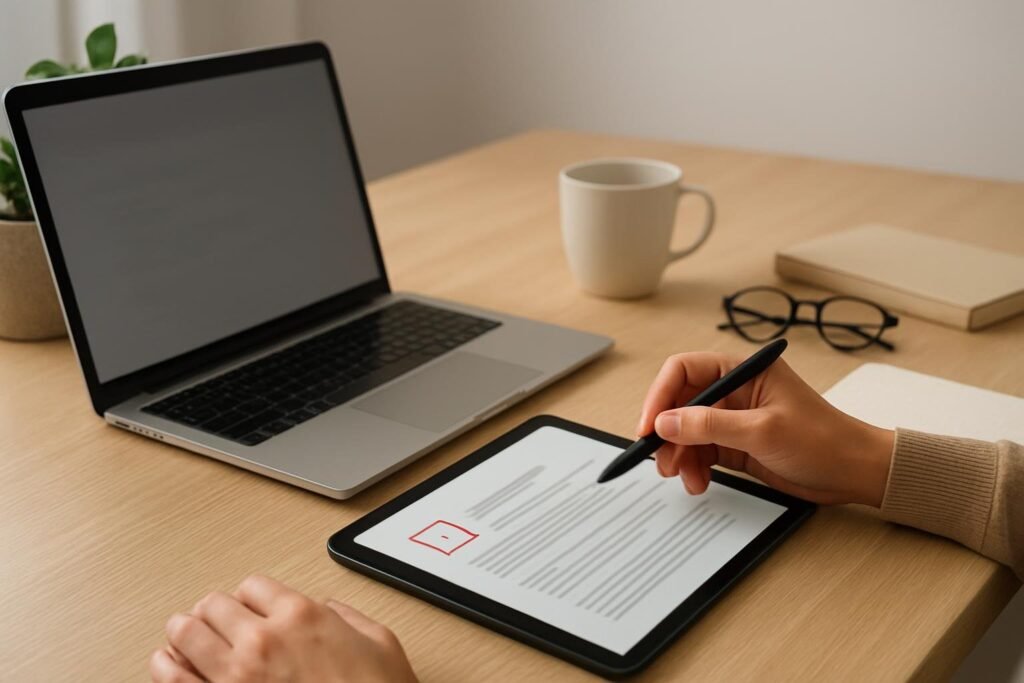
Edge opens PDFs natively and lets you mark them up right in the browser. Nothing to download, no account needed.
- Draw: freehand ink in different colors, handy for circling a formula on a lecture slide.
- Highlight: mark key lines in a reading as you go.
- Add text: type into worksheet gaps or drop a quick note in a margin.
- Read Aloud: useful when you’re getting through a dense article while folding laundry.
Picture a student with a 40-slide deck due for tomorrow’s seminar. Open it in Edge, highlight the definitions, scribble on the diagrams, save. Done in minutes.
The limit: Edge marks up a document, but it won’t rewrite the original text. For that, use the editor from the previous section.
macOS Preview for quick signatures
If you’re on a Mac, Preview is quietly excellent. It’s already installed, and it works offline.
- Open the PDF in Preview and click the Markup toolbar icon.
- Choose the signature tool and sign with your trackpad or by holding a signed paper up to the camera.
- Place the signature, then use the text tool to fill in homework boxes or form fields.
Merging is just as quick. Open one PDF, show the thumbnail sidebar, and drag pages from another file in. Save, and you have a single document.
Between them, these two cover roughly 80% of daily student tasks: annotating, filling, signing, and combining pages. Both also keep your files on your own machine, which matters when the form includes your student ID or financial aid details.
Best Apps for Stylus Note-Taking on Tablets
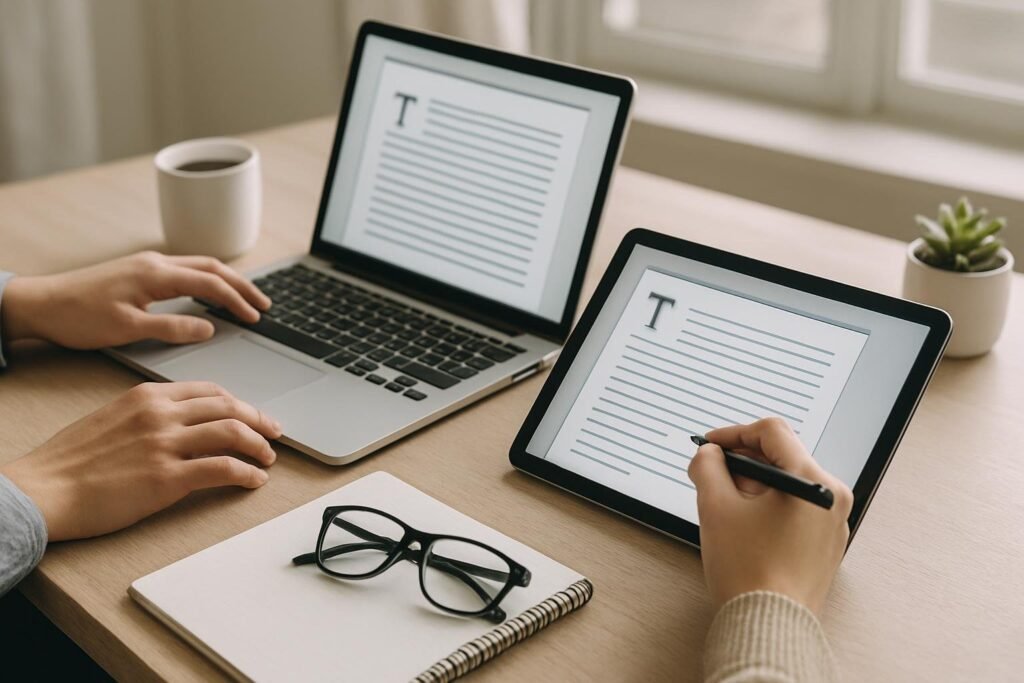
When you sit in a lecture hall scribbling arrows across an 80-page slide deck, you do not need full typography controls. You need fast ink tracking, palm rejection, and zero lag.
Sticking with offline-first tools keeps your lecture notes private and ensures you can study even when campus Wi-Fi drops out right before a midterm.
Xournal++ for handwriting
If you use a 2-in-1 laptop running Windows, macOS, or Linux, Xournal++ is the standout choice. It is a completely free, open-source program built specifically for pen input and graphic tablets.
- Precise stylus support: Handles pressure sensitivity smoothly for clean handwritten margins and diagram sketches.
- Zero cloud tethering: Saves files locally to your hard drive, keeping research and graded coursework off third-party servers.
- Audio recording: Lets you sync recorded lecture audio directly to the specific notes you write in real time.
Xodo and Drawboard PDF free tiers
For mobile setups like an iPad or an Android tablet, Xodo remains one of the top picks. Its free tier covers smooth handwriting, quick text highlighting, and margin notes without forcing a paid checkout after your third upload.
Drawboard PDF offers another solid free tier, particularly on Windows Surface devices, featuring an intuitive circular pen dial. If you only need to mark up weekly readings and sign lab forms with a stylus, these tools easily rival paid options without hitting your monthly budget.
Quick Utilities for Merging, Compressing, and OCR
Sometimes you don’t need an editor at all. You just need to stitch five readings together, shrink a file for an upload portal, or make a scanned chapter searchable. For that, I’d install one offline tool and stop hunting.
PDF24 Creator for offline utilities
PDF24 Creator is a desktop program that handles the boring jobs without asking for a credit card. I’ve used a range of PDF tools and web utilities since 2021, and a local app like this saves the most hassle for routine file chores.
- Free and unlimited: merge, compress, OCR and page reordering, with no daily task caps.
- No file size limits or watermarks: it runs on your own computer, so there’s no upload step and no paywall waiting at the download button.
- Offline by design: your financial aid forms and unpublished drafts stay on your machine.
Here’s a scenario that fits. It’s two weeks before finals, and your professor handed out a scanned chapter that’s basically a photo. You can’t search it or copy a quote from it. Run OCR on it first.
- Open PDF24 Creator and choose the OCR tool.
- Drop in the scanned chapter.
- Save the result as a new file, so the original stays untouched.
- Press Ctrl+F (Cmd+F on Mac) and search for “mitosis” or whatever you’re revising.
OCR isn’t perfect on blurry or skewed scans, so skim the key passages before you quote them. Still, a searchable chapter beats scrolling through 40 pages at midnight.
Install One Offline PDF Editor Tonight
Pick PDFgear or PDF24 Creator and install it today, while nothing is due. It takes a few minutes, and that’s the whole job.
Then open any old syllabus or worksheet and try one edit, one merge and one save. You want to learn where the buttons are before a deadline forces you to.
Next time a free website demands a subscription at 11:50 pm, you’ll already have a tool on your desktop that doesn’t ask for anything.
Frequently asked questions
Can I edit existing text in a PDF for free without leaving a watermark?
Yes, but usually only with offline desktop tools. PDFgear and PDF24 Creator are commonly used for this and don't normally stamp watermarks on exports. Many online editors let you edit freely, then demand payment or add a watermark at download. Test a throwaway file first, and check the export before you rely on it.
What is the best free PDF app for taking notes with an Apple Pencil or Surface Pen?
It depends on your device. On iPad, Apple's built-in Markup in Files and Notes handles basic annotation for free. On Windows, Microsoft Edge and OneNote both accept pen input on PDFs. Try one real lecture handout in each before deciding, since pen feel and palm rejection vary by device.
How can I convert a scanned textbook page into searchable text for free?
Use a free OCR tool to turn the scan into selectable text. Options include the OCR in PDF24 Creator, Google Drive's open-with-Docs trick, or OneNote's copy text from picture. Scan at a decent resolution, keep the page straight, and always proofread the result, because OCR often garbles equations, tables and footnotes.
Is it safe to upload sensitive student aid documents to free online PDF converters?
Generally no. Financial aid forms contain your Social Security number, income details and other personal data, and you can't verify how a free site stores or deletes files. Use an offline tool on your own computer for anything sensitive. If you must use a website, read its privacy policy first.
Does Google Drive or Microsoft Word allow you to edit a PDF without ruining the layout?
Sometimes, but expect layout damage on anything complex. Word can open and convert PDFs, and Google Docs can open them too, but columns, tables, fonts and images often shift. They work fine for simple text-heavy files. For forms or designed pages, a dedicated PDF editor keeps the original layout far better.