Your page loads slowly, your PageSpeed score sits in the red, and the hero image is the main culprit. Choosing the right option in WebP vs JPG debates sounds simple, yet WebP vs JPG vs AVIF is where most people get stuck. Here is the short answer: AVIF produces the smallest files, WebP is the reliable workhorse for most sites, and baseline JPEG only stays around as a fallback for older browsers.
The trick is picking the right format for each job without overloading your server. AVIF can cut file sizes hard, but encoding it costs real CPU time, and that bill adds up fast when you weigh WebP vs JPG performance on low-end hardware.
Below, you will see the actual size differences, which browsers need a fallback, where AVIF’s encoding cost bites, and a picture tag setup you can copy today for your WebP vs JPG comparisons.
WebP vs JPG and AVIF File Size Benchmarks
How JPG, WebP, and AVIF stack up on real photos
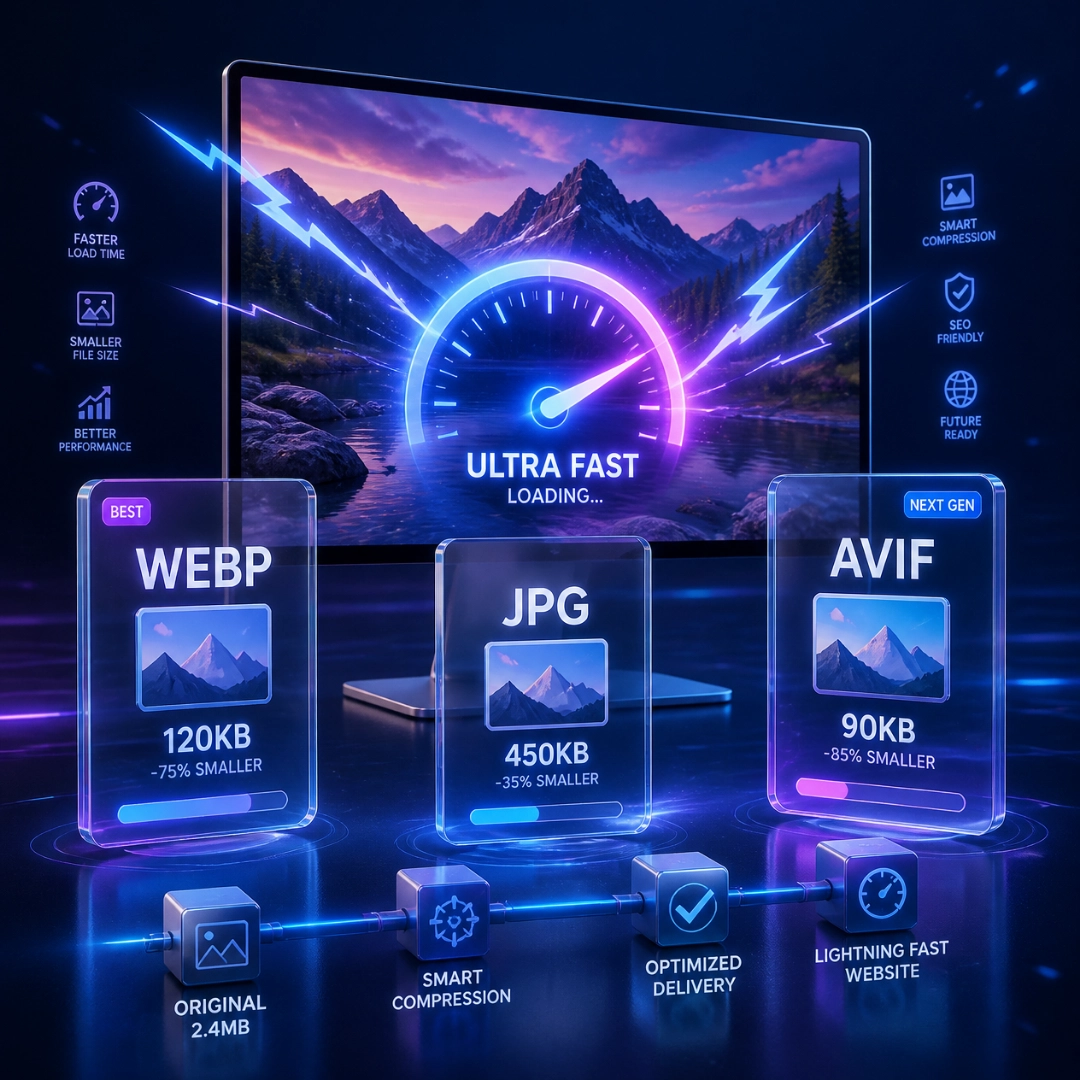
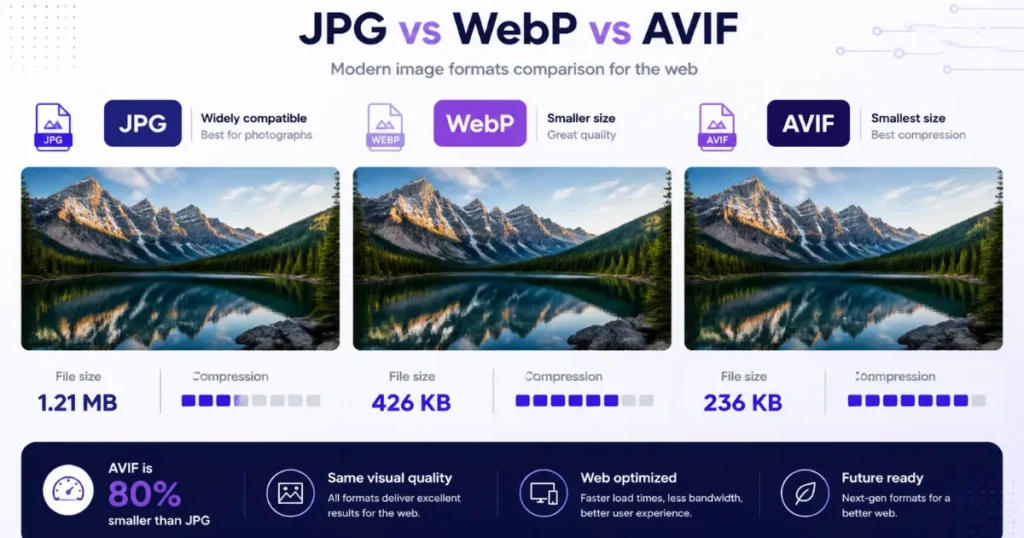
Start with the numbers that matter most for WebP vs JPG benchmarks. On photographic content, WebP is typically 25% to 35% smaller than baseline JPEG at visually matching quality. That gap is why WebP became the default workhorse for most sites.
AVIF pushes further in every WebP vs JPG comparison. It cuts file sizes by roughly another 20% to 30% over WebP, which brings the total savings to around 50% compared with standard JPEG. On paper, that’s a big win.
Here’s a rough way to think about it. Say your hero photo is 400 KB as a JPEG. At matching quality, you might see something near 260 to 300 KB as WebP and around 200 KB as AVIF. Treat those as ballpark figures, not guarantees. Your own photos, compression settings and encoder will shift the result.
| Format | Typical size vs. baseline JPEG | Best use |
|---|---|---|
| JPG | Baseline | Legacy fallback and email |
| WebP | About 25% to 35% smaller | Everyday web delivery |
| AVIF | About 50% smaller | Large photos where encoding time is affordable |
Keep one caveat in mind during any WebP vs JPG evaluation. Compression sliders don’t mean the same thing across codecs. A “quality 80” in one encoder can look different from “quality 80” in another, so compare files at the same visual result, not the same number.
The micro-image paradox for icons and avatars
Bigger isn’t always better for small graphics when doing WebP vs JPG tests. For tiny assets, such as icons and avatars under about 10 KB, AVIF’s container overhead can make the file larger than the WebP version. In some cases it even beats the SVG or optimised PNG in size.
Picture a small shop owner with a 64 × 64 pixel product badge. The image is tiny, so the fixed header data in AVIF takes up a bigger share of the file. The compression savings never get a chance to show.
Here’s what I’d do in practice:
- Keep simple logos and icons as SVG whenever you can.
- Test small avatars and badges in both WebP and AVIF before you convert them all.
- Use AVIF mainly for large photos, where the savings really add up.
Most of the browser support worries you read online are out of date for WebP vs JPG workflows. Today, the question is less “Can browsers show it?” and more “Which clients in my audience still choke on it?” The answer depends on whether you’re building a website or sending email.
Browser Support Realities and Legacy Fallbacks
Most of the browser support worries you read online are out of date. Today, the question is less “Can browsers show it?” and more “Which clients in my audience still choke on it?” The answer depends on whether you’re building a website or sending email.
Modern browser compatibility table
For your website, all three formats work in current browsers. The real differences show up in how old your visitors’ devices are and how your team handles fallbacks.
| Format | Chrome | Firefox | Safari | Edge |
|---|---|---|---|---|
| JPG | Universal | Universal | Universal | Universal |
| WebP | Supported across current versions | Supported across current versions | Supported across current versions | Supported across current versions |
| AVIF | Since v85 | Since v93 | Since v16.0, with full support from v16.4 | Supported (Chromium-based) |
WebP is the safe default for almost every site today. AVIF works in all major modern engines, but you should still keep a fallback for older devices. Check your own analytics before you decide how much of your traffic sits outside these versions.
If you run a small blog, a quick look at your browser report in Google Analytics will tell you more than any table. Old Android phones and older iPads are the usual gaps.
Why email marketing still requires JPEG
Email is a different world. Outlook and many legacy webmail clients do not render WebP or AVIF reliably, so an image can show as a broken box for your subscriber.
Your site can load fast and still frustrate customers during a WebP vs JPG transition. The problem starts when someone right-clicks a product photo and saves it to their desktop.
- Use JPG for photos in every newsletter.
- Use PNG only when you need transparency and have tested it in your email platform.
- Keep WebP and AVIF on the website, not in the email template.
Your email platform may convert or host images for you, but test a real send to Outlook before you trust it.
The Hidden CPU and Server Cost of AVIF Encoding
AVIF looks like the obvious winner on file size, but the bill arrives somewhere else. Encoding is slow, and slow encoding can hurt your server if you run it at the wrong moment. Plan for it before you commit.
Encoding time differences between codecs
Encoding is the step where the image gets compressed. Decoding, which the browser does, is fast for all three formats. The expensive part is encoding, and it varies a lot.
Rough numbers from published comparisons:
- JPEG: the baseline. Encoding is quick and cheap on almost any hardware.
- WebP: noticeably slower than JPEG, but usually manageable for batch work.
- AVIF: roughly 5x to 10x slower than JPEG, and up to around 40x slower than WebP depending on the CPU and effort setting.
Those figures move with hardware and encoder settings, so test on your own machine. Run the same ten images through your encoder at two effort levels and time them. You will see the gap for yourself.
Avoiding TTFB spikes with dynamic CDNs
Here is the mistake I see most often. A site turns on automatic AVIF conversion, and every first request for an image triggers a fresh encode on the origin server. CPU usage jumps, and the page waits. Time to First Byte (TTFB) climbs, and the visitor feels the lag before any image appears.
Imagine a small shop with a product grid of 300 photos. A traffic spike hits after a newsletter goes out. Every uncached image triggers a slow encode at the same moment, and the server stalls.
A safer setup works in two ways:
- Batch pre-encode. Convert your images to AVIF and WebP once, in a scheduled job or during upload, and store the results.
- Use an edge CDN with caching. Let the CDN check the browser’s
Acceptheader, serve AVIF where it is supported, and cache the result at the edge so each image is encoded only once.
If you cannot pre-encode, at least make sure the first conversion happens off the request path. Your visitors should never wait for an encoder to finish.
Ecosystem Friction: Saving Files to Desktop
Why users struggle to open WebP and AVIF files
Your site can load fast and still frustrate customers. The problem starts when someone right-clicks a product photo and saves it to their desktop.
Picture a shopper who buys a sample pack from your store, saves the product images, and then tries to drop them into a presentation. The file has a .webp or .avif extension, and the app they open either refuses it or shows a blank box. That’s a support ticket waiting to happen.
- Older Photoshop versions may not open WebP or AVIF files without a plugin or an updated release.
- Microsoft Office does not reliably insert these formats into Word, Excel, or PowerPoint, so users get errors or missing images.
- Social media scrapers can fail to read WebP or AVIF when you share a product link, which leaves the preview card empty.
Handling desktop software and social scrapers
You don’t have to drop WebP for the whole site. You just need the downloads to behave differently from the page view.
- Give your download buttons a JPG version of each product asset.
- Set the server to send a Content-Disposition: attachment header on those JPG files so the browser saves them as JPEG.
- Keep WebP or AVIF for on-page display, and check your share-card images in a link preview tool before launch.
If your store only has WebP files, a quick batch conversion with the WebP to JPG tool gives you the JPG copies to attach to your download links. Test a few downloads on Windows and macOS before you call it finished.
Step-by-Step Implementation Guide Using HTML Picture Tags
Here’s the workflow I’d follow if I were setting this up on a product site this afternoon. Three steps, and the markup is the easy part.
Writing the optimal fallback markup
Start with one high-quality master file per image, ideally a PNG or a large JPEG straight from the camera or design tool. Never encode from an already compressed file, or you’ll stack quality loss.
- Export three versions. Create an AVIF file, a WebP file and a JPEG file from the master. Use a tool that exposes encoder settings, such as
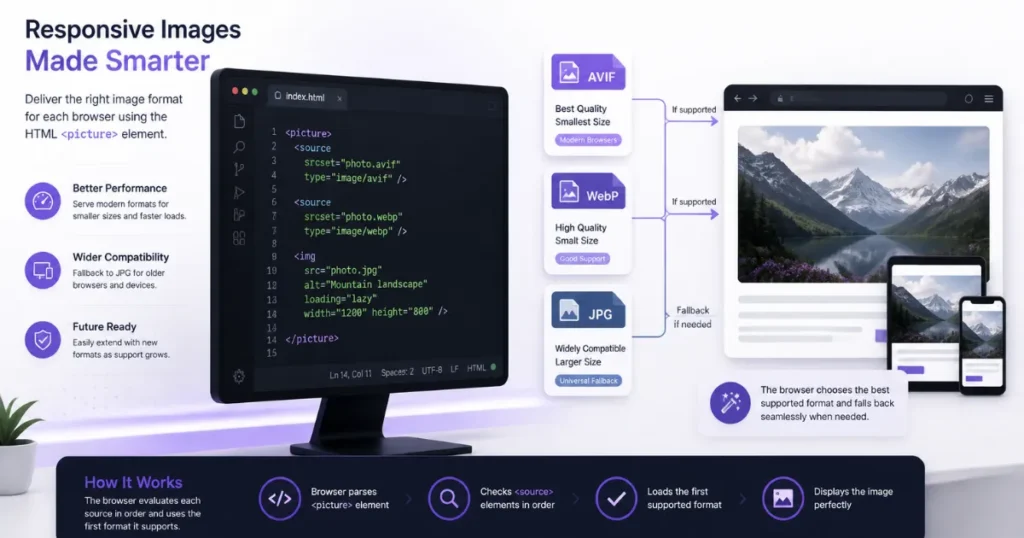
libavif(via avifenc),libwebp(via cwebp) orcjpeg. Pick a slower effort setting for files you encode once and serve forever. Check each output visually at 100% zoom, not only the file size. - Write the picture element. Order the sources so the browser picks the best one it can decode. AVIF goes first, WebP second, and the JPEG sits in the
imgtag as the default:
<picture>
<source srcset=”shoe.avif” type=”image/avif”>
<source srcset=”shoe.webp” type=”image/webp”>
<img src=”shoe.jpg” alt=”Brown leather boot, side view” width=”800″ height=”600″>
</picture>
Always set width and height on the img. That stops layout shift while the image loads.
- Test in real browsers. Open a product page in desktop Chrome, Firefox and Safari. Then check an older iPhone and an Android phone. In the browser’s developer tools, look at the Network tab and confirm which file actually loaded. If you see the JPEG in a browser that supports AVIF, your
typeattributes or file paths have a typo.
Let Your CDN Pick the Right Format for Each Visitor
Put an image CDN in front of your images and let it choose the format next. Pick a provider that supports automatic format negotiation, point a test hostname at your image folder, and turn that option on. Modern browsers already tell the server what they can read through the Accept header. Your CDN can therefore send AVIF to compatible browsers, WebP to others, and JPEG to everything else.
Test it before you trust it. Run curl -I -H 'Accept: image/avif' https://your-test-host/photo.jpg and check the Content-Type line. Repeat with only image/webp and again with no Accept header. Confirm the response includes Vary: Accept, or caches may serve the wrong format to the wrong visitor.
Frequently asked questions
Can I drop JPEG completely and just use WebP across my entire website?
No, not yet for most sites. WebP has wide browser support, but some older browsers, email clients, and third-party tools still expect JPEG or PNG. Keep JPEG as the final fallback, either in a picture element or through your CDN, so modern visitors get the smaller files. Check your analytics for the share of old browsers before you remove anything.
Why does a converted WebP or AVIF file sometimes end up larger than my original JPEG?
Usually the converter used a quality setting that is too high, or the original JPEG was already heavily compressed. Re-encoding a lossy file at high quality can add size without adding real detail. Small flat graphics can also grow when converted. Try a lower quality setting, compare a sample visually, and keep the original when the result is bigger.
Does Google Image Search index and rank AVIF and WebP images normally?
Yes, Google can crawl, index, and show WebP and AVIF images, as long as they load from a crawlable URL and sit on a page that is linked properly. Use descriptive file names, meaningful alt text, and image entries in your sitemap. After launch, check the indexing reports in Google Search Console, because the image format alone rarely decides rankings.
Which encoder settings matter most when batch processing AVIF files?
Quality and effort matter most. Quality controls the balance between file size and visible artifacts, so test a few representative images at full size before running the whole batch. Effort or speed settings change how long each file takes, and slower settings often produce smaller files. Keep chroma subsampling at the default for photos, and test graphics that contain text separately.